

# General tips

On this page we cover:

* [Common features](#filtering-and-rendering-options) of all OFN reports such as filtering and rendering options
* How to permit [suppliers](#reports-for-suppliers) to have access to reports of sales of their produce through your hub.
* [Helpful reports](#some-helpful-reports) for different tasks.

## Filtering & rendering options

To customise your report there are two sections: filters and rendering options, which will allow you to access the relevant data from your report.

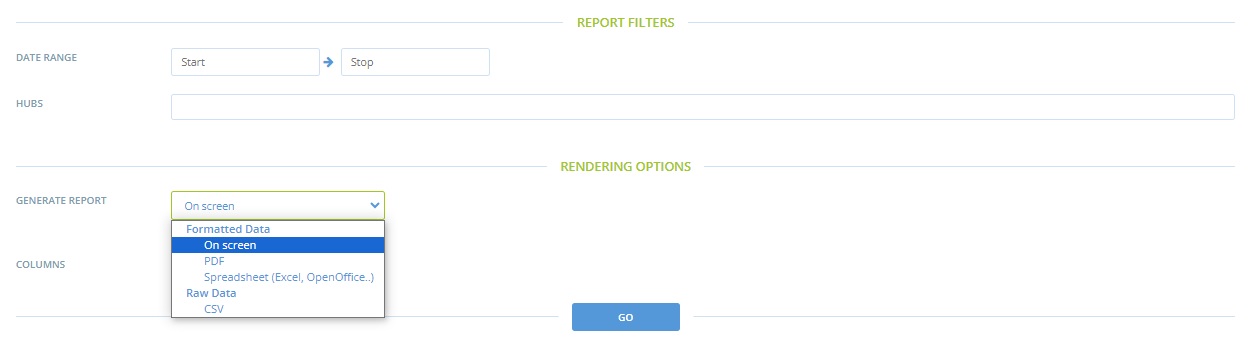
The **list of filters** available varies from report to report but for most you will be able to select specific data according to date range, hub and/or supplier name and order cycle:

<figure><img src="https://content.gitbook.com/content/YnBIIxacXJFnzOxHhUkG/blobs/tx0byJoZaz8iWQBc5Hc1/filters.jpg" alt=""><figcaption></figcaption></figure>

{% hint style="info" %}
Hubs and shops who operate [continuously open order cycles](https://guide.openfoodnetwork.org/greek/basic-features/shopfront/order-cycle) may find using the Date filter when viewing reports useful.
{% endhint %}

{% hint style="success" %}
Filtering data by Hub and Producer name can be especially useful if you manage multiple enterprises on the platform.
{% endhint %}

Below Report Filters options you will be able to select how you would like to view the report data- **Rendering Options.** Here you will find a list of the pre-defined data exports that are available to view and download.

All reports are available to download as in CSV, PDF and Excel and OpenOffice format. To select which file type you would like to download click the **Generate** **Report** drop down box where you can choose between these four formats.&#x20;

<figure><img src="https://content.gitbook.com/content/YnBIIxacXJFnzOxHhUkG/blobs/ujZ9qF3MmAdoYzsb0TwP/basic%20orders%20and%20distributers%20options.jpg" alt=""><figcaption></figcaption></figure>

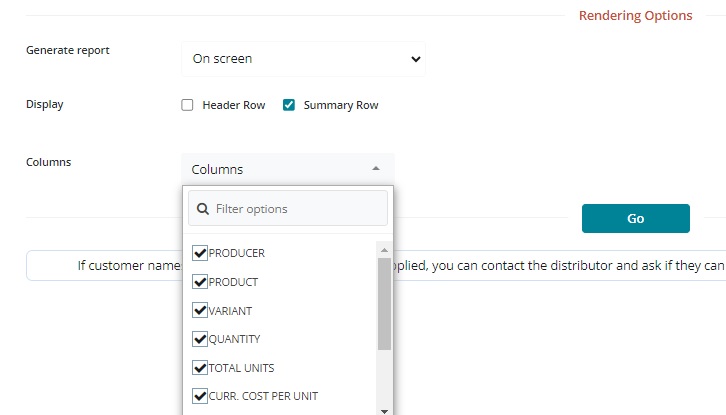
You can use the **Columns** filter to make your reports easier to read you can remove unnecessary data. To do this, just tick or untick boxes in the drop down menu (by default all columns will be ticked):

<figure><img src="https://content.gitbook.com/content/YnBIIxacXJFnzOxHhUkG/blobs/yrBZJqm6jJ5mykpLkJhM/rendering3.jpg" alt=""><figcaption></figcaption></figure>

For selected reports (**Packing** and **Orders & fulfillment**) there is an additional option to select 'Header Row' and/or 'Summary Row'.

<figure><img src="https://content.gitbook.com/content/YnBIIxacXJFnzOxHhUkG/blobs/4b14h0dPBEP6nDIAyokg/rendering2.jpg" alt=""><figcaption></figcaption></figure>

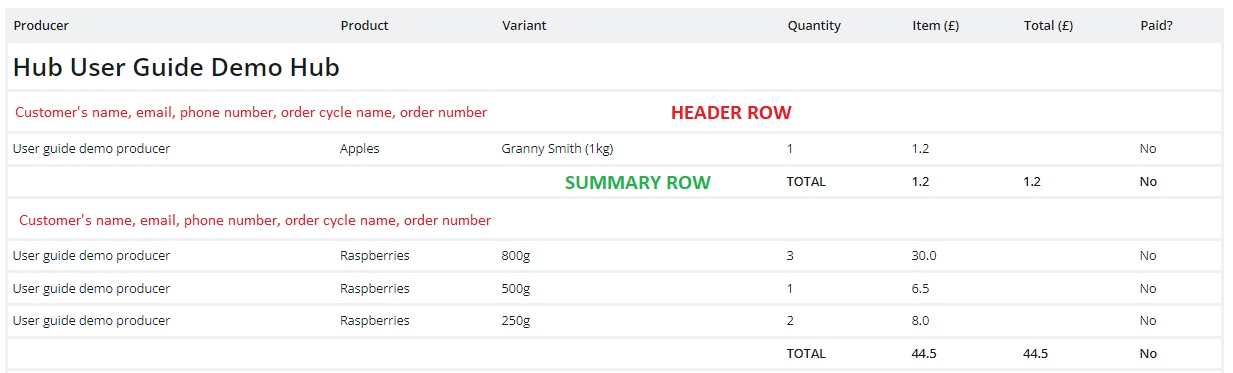
The **summary row** is a filter that adds totals to the bottom of each type of report and the **header row** gives you the name of the customer and order number (for Order and Fulfillment reports) or phone number (for packing reports) above the data.&#x20;

<figure><img src="https://content.gitbook.com/content/YnBIIxacXJFnzOxHhUkG/blobs/9yBy0LfkemupM6UmlwRn/HEADER%20AND%20SUMMARY.jpg" alt=""><figcaption></figcaption></figure>

## Reports for Suppliers&#x20;

If you have set [Permissions](https://guide.openfoodnetwork.org/greek/basic-features/enterprise-profile/enterprise-to-enterprise-permissions-e2es) for a Hub to sell your products, and they have opened an [Order Cycle ](https://guide.openfoodnetwork.org/greek/basic-features/shopfront/order-cycle/order-cycles-for-hubs)with your products listed, you will be able to run reports to pack and process your orders.&#x20;

{% hint style="success" %}
If you need to see Customer names in these reports, you can ask the Hub to make them visible in these reports.&#x20;
{% endhint %}

Hubs can make this change in their [Enterprise Settings](https://guide.openfoodnetwork.org/greek/basic-features/enterprise-profile/enterprise-settings).

{% hint style="info" %}
HINTS:&#x20;

1. If you are a producer who supplies more than one food hub you can use the 'Hub' filter when viewing reports to identify which products you will be asked to deliver to each.
2. As a supplying producer you may not know the names of current open order cycles.  Filtering orders in your reports by date range is an easy alternative.
   {% endhint %}

## Some Helpful Reports

<table data-header-hidden><thead><tr><th width="358">Task</th><th>Suggested Report(s)</th></tr></thead><tbody><tr><td>Task</td><td>Suggested Report(s)</td></tr><tr><td>Product availability</td><td><a href="../order-reports#order-cycle-supplier-totals">Order Cycle Supplier Totals</a></td></tr><tr><td>Reviewing products stocked</td><td><a href="../reports-for-hub-management#product-management">All Products</a></td></tr><tr><td>Reimbursing suppliers</td><td><a href="../order-reports#order-cycle-supplier-totals">Order Cycle Supplier Totals</a></td></tr><tr><td>Pack or process orders on an <br>individual or batch basis</td><td><a href="../order-reports#order-cycle-customer-totals">Order Cycle Customer Totals</a></td></tr><tr><td><p>Checking in products delivered</p><p>by suppliers</p></td><td><a href="../packing-reports#pack-by-supplier">Pack by supplier</a></td></tr><tr><td><p>Packing goods to be </p><p>collected by customer</p></td><td><a href="../packing-reports#pack-by-customer">Pack by customer</a></td></tr><tr><td>Planning deliveries</td><td><a href="../reports-for-hub-management#order-cycle-management">Delivery Report</a></td></tr><tr><td>View customer balance</td><td><p><a href="../reports-for-hub-management#order-cycle-management">Payment method &#x26;</a></p><p><a href="../reports-for-hub-management#order-cycle-management">Delivery Reports</a></p></td></tr><tr><td>Calculating GST/VAT</td><td><a href="../payment-and-tax-reports#sales-tax">Sales Tax reports</a></td></tr><tr><td>Managing total revenue</td><td><a href="../payment-and-tax-reports#payment-reports">Payment Reports</a></td></tr><tr><td>Enterprise Fee breakdown</td><td><a href="../reports-for-hub-management#enterprise-fees">Enterprise Fee Report</a></td></tr><tr><td>Integrating with Xero</td><td><a href="../payment-and-tax-reports#xero-invoices">Xero Invoices</a></td></tr><tr><td><p>Bulk Order Management </p><p>for buying groups</p></td><td><a href="reports-for-bulk-order-management">Bulk Coop Reports</a></td></tr></tbody></table>
