> For the complete documentation index, see [llms.txt](https://guide.openfoodnetwork.org/llms.txt). Markdown versions of documentation pages are available by appending `.md` to page URLs; this page is available as [Markdown](https://guide.openfoodnetwork.org/greek/hub-management-tips/how-tos/take-orders-on-credit.md).
# Take orders on Credit
## Introduction
Although this feature is not-yet built into OFN, with a few quick steps it is possible to allow customers to pay with prepaid credit on OFN. In a nutshell, this involves first creating a credit product that the customer checks out with. The store manager will then go into the backoffice and ‘delete’ this product putting ‘credit’ on the customer account. Future orders can then be ‘paid’ with the credit on the account.
## Process
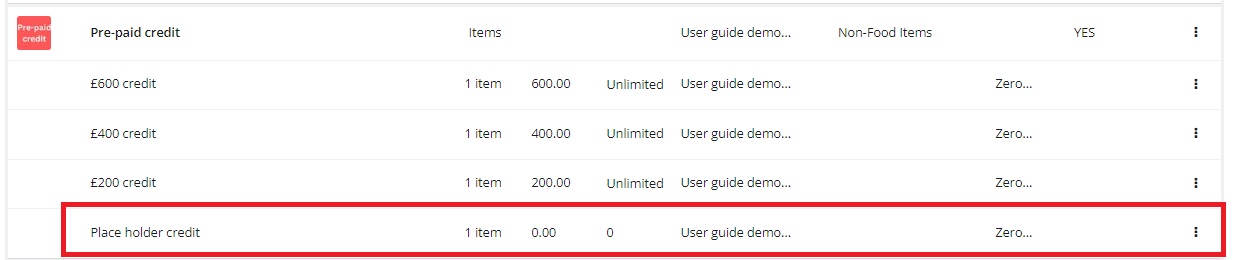
First create a credit product in the backend. When creating the [product](/greek/basic-features/products-1.md) in the backend also create a variant named ‘Place Holder credit’ variant for $0 and with ‘0’ for ‘on hand’ available. It will come in handy later in the backend order admin. Then add all the variants to an [order cycle](/greek/basic-features/shopfront/order-cycle.md) to sell the prepaid credit to your customers.
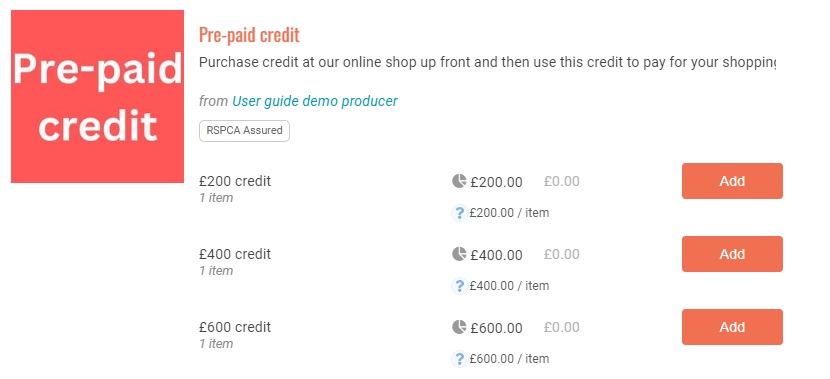
Here is an example credit product in the storefront that the customer can choose to add ‘credit’ to their account.
Instruct the customer to choose the amount of credit they want to apply to their account and check out their order. Make sure they ‘save’ their account info by choosing ‘LOGIN’ when checking out and creating an account with a password.

Now in the backend you will have their order with the amount of credit they are purchasing.
Once they have paid the order you can ‘capture’ the payment by using the green checkmark.
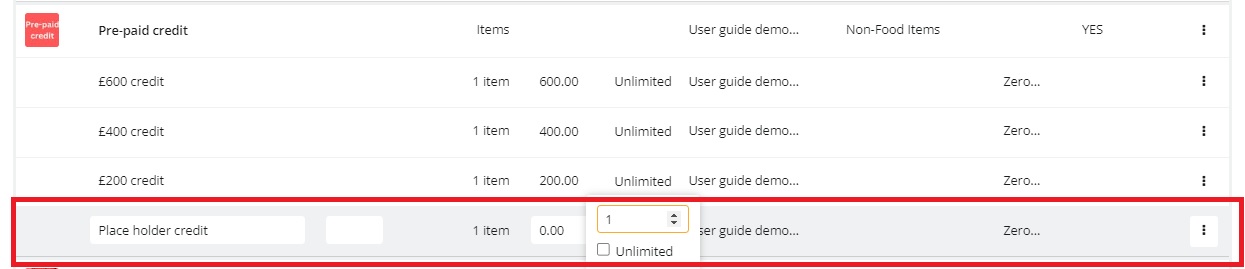
Then you need to go in and ‘edit’ the order, but first you will have to add ‘on hand’ to the ‘place holder credit’ product. Add the amount of ‘on hand’ equal to the number of credit orders you are processing at that time (i.e. you have 1 credit orders, add ‘1’ as ‘on hand’ to the ‘place holder credit’ variant and SAVE CHANGES).
Now you can go back to your order list and choose to[ ‘edit’ the credit order](/greek/basic-features/orders.md).
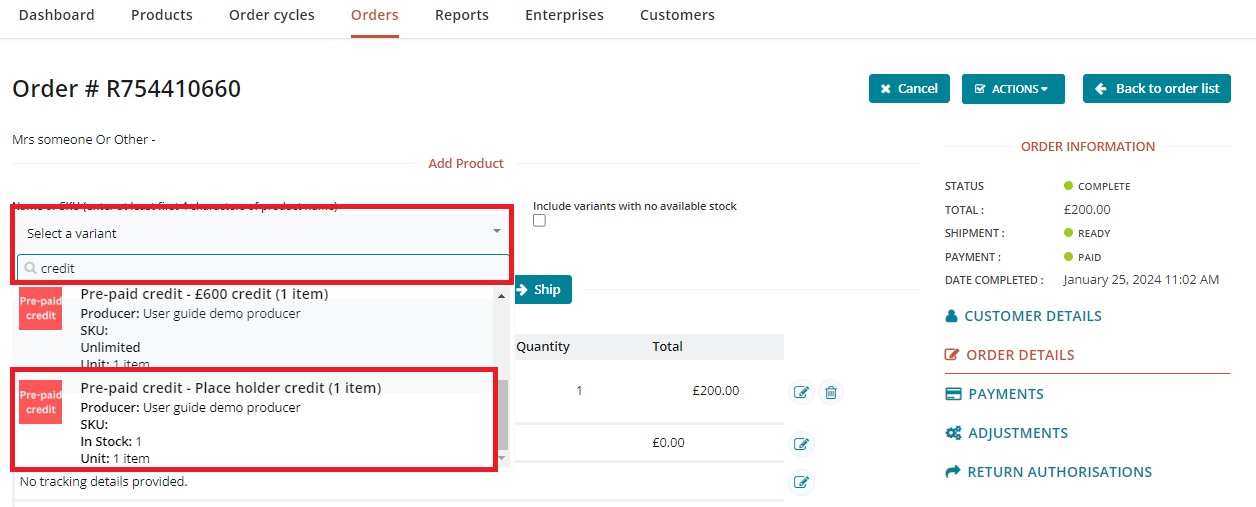
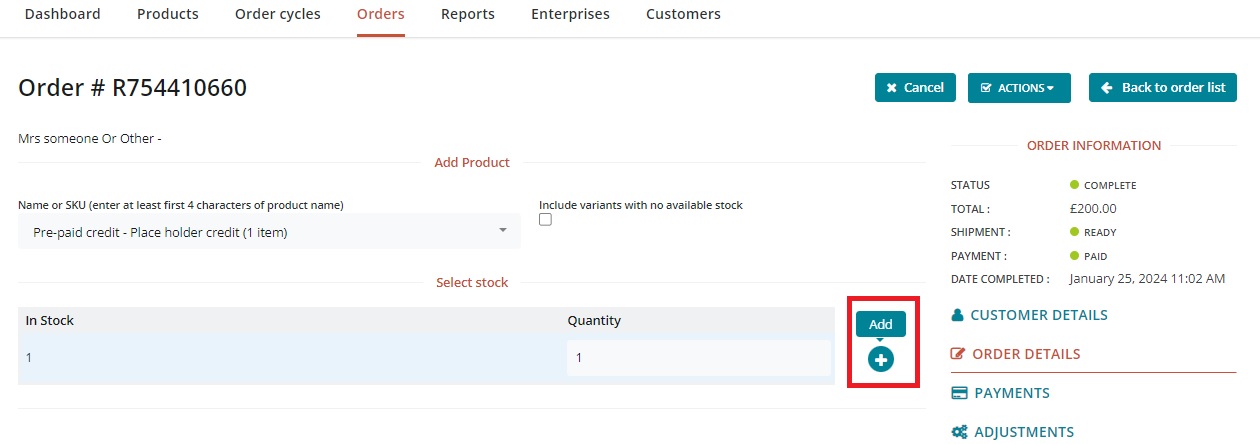
First you will need to add the ‘Place Holder credit’ to the order.
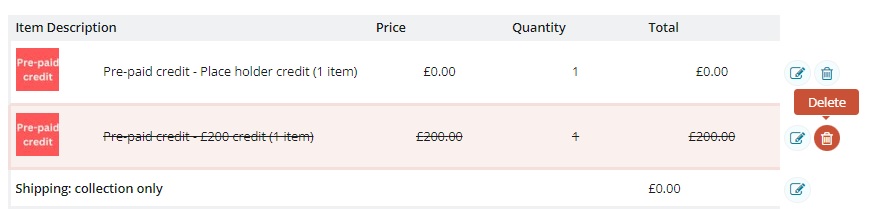
Now you can delete the other ‘credit’ product from the order (adding the ‘place holder credit’ variant first prevents the entire order from being canceled; that step would be unnecessary if the order already contained other products).
Now in your orders list the payment state for the order will revert to ‘credit owed’ for the amount of the prepaid credit.
It will also look like this in your customer list under the[ **Customers**](/greek/basic-features/shopfront/customer-management-and-conditional-displays-prices.md) tab for that customer.
And if you do a [**Order Cycle Management - Delivery Report**](/greek/basic-features/reports/reports-for-hub-management.md), it will show a positive balance for the customer.
And if the customer logins to their account on OFN and goes to Transactions they will see a running balance of their account with you.
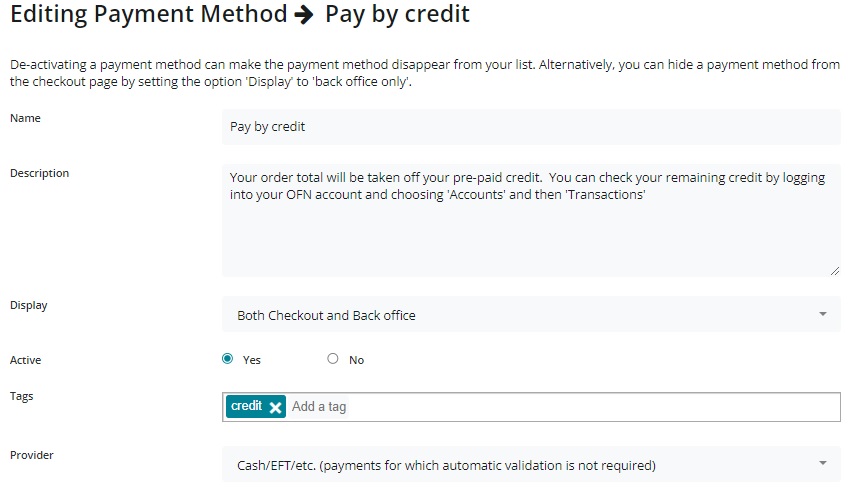
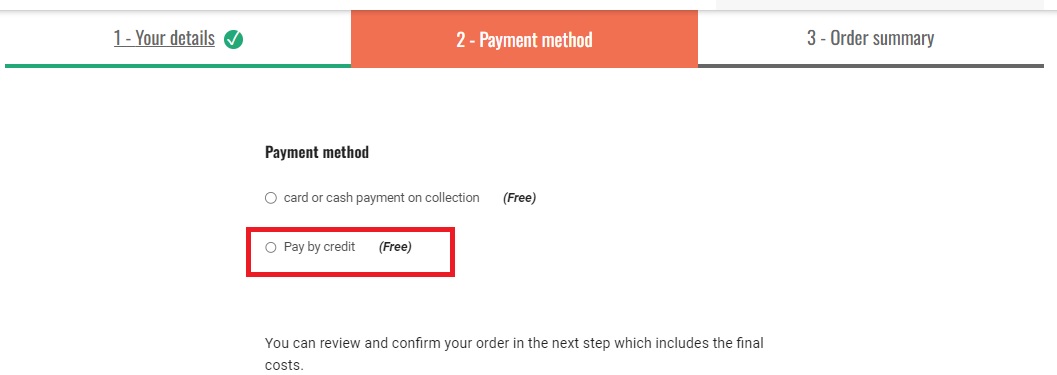
To apply the credit to future orders you will need to [create a payment option](https://guide.openfoodnetwork.org/basic-features/shopfront/payment-methods#setting-up-a-payment-method) - ‘pay by credit’ that customers can choose when they checkout to indicate they want you to use their credits.
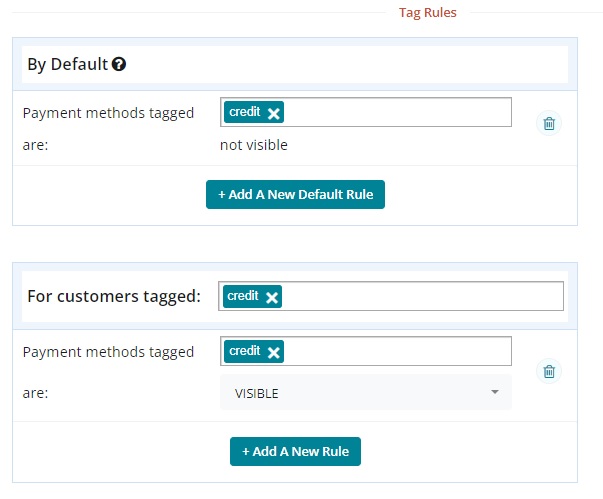
You can use [tags](https://guide.openfoodnetwork.org/basic-features/shopfront/customer-management-and-conditional-displays-prices/tags-and-tag-rules) if you want this payment option only available/visible to those customers that have purchased prepaid credit with you. Add the appropriate tag to the customer's account:
And set up the following tag rules:
Make sure you add the new payment method to page 4 of your order cycles ('Checkout options') when you set up a new order cycle.
This is what the customer will see when they checkout.
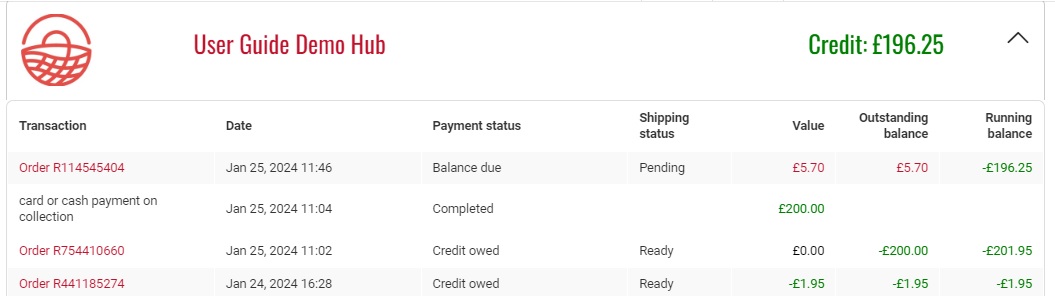
Once the customer has placed a 2nd order it will appear in your **Orders** list with a **Balance Due**.
This is what they will see if they login to their account. The negative amount means their remaining credit balance.
And this is what you will see if you as a manager from your customer list.
And if you run the Delivery Report.
**IF** you want to mark the new order as ‘Paid’ changing the payment state from ‘Balance Due’ to ‘Paid’, you can click the green check mark to the right of the order. (**Note**: You may first want to check your customer list to ensure the customer has enough ‘credit owed’ to cover the order cost. If they don’t you can make a partial payment on the order with the ‘credit owed’ amount remaining and then send them an invoice for the balance on the order.)
Now the payment state of the order is 'paid' in your orders list.
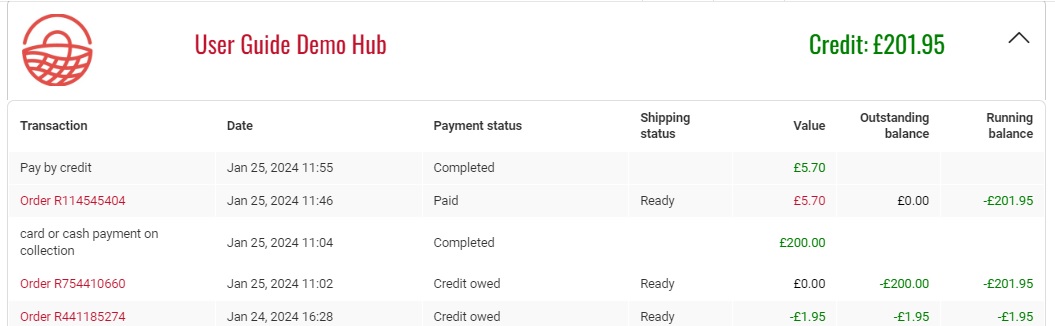
But in the customer record and in your customer list the running balance will revert back to the full prepaid credit amount.
To credit the payment on the 2nd order to the running balance of credit we must now go into that original credit order and make a negative payment in the amount of the 2nd order (i.e. - £5.70).
First Edit the original credit order.
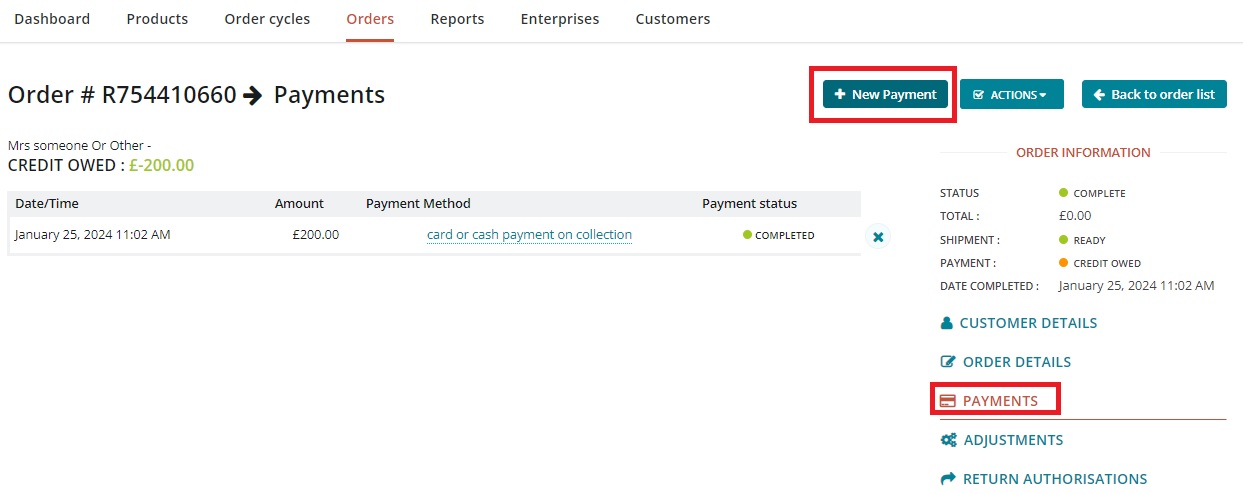
Then choose Payments from the right side menu. Choose New Payment from the top right menu.
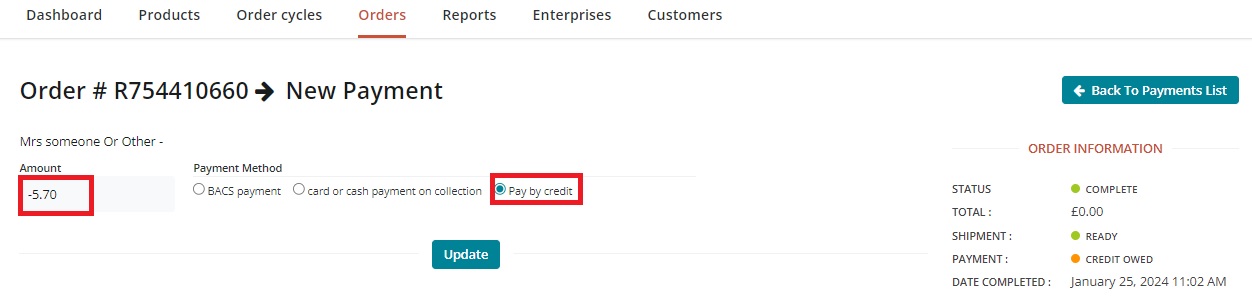
Enter the amount of the order paid that has been 'paid by credit' preceded with a minus sign (i.e. -£5.70) and choose ‘Pay by Credit’, then ‘Update’.
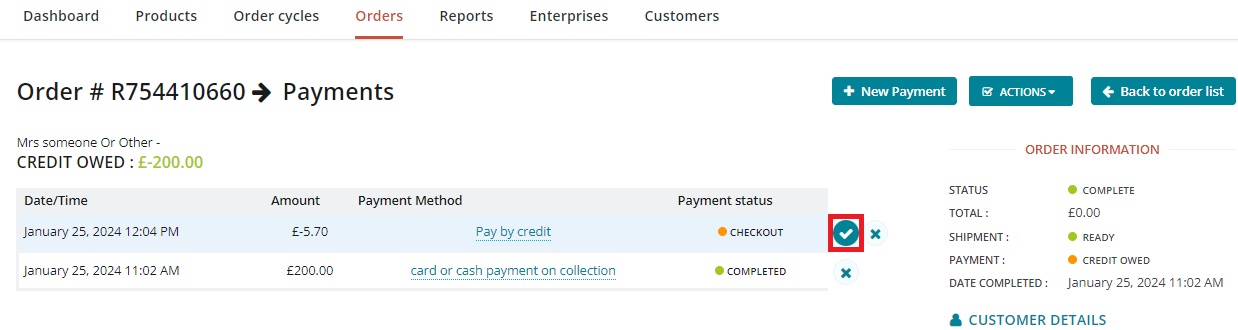
‘Capture’ that payment with the green check mark.
Now the ‘credit owed’ has been reduced by the correct amount on the credit order.

And the balance is correct in your customer list.
And the Delivery Report will show the up-to-date balance for the customer. The 2nd order has been paid (so it is no longer negative) and the credit or positive balance has been reduced.
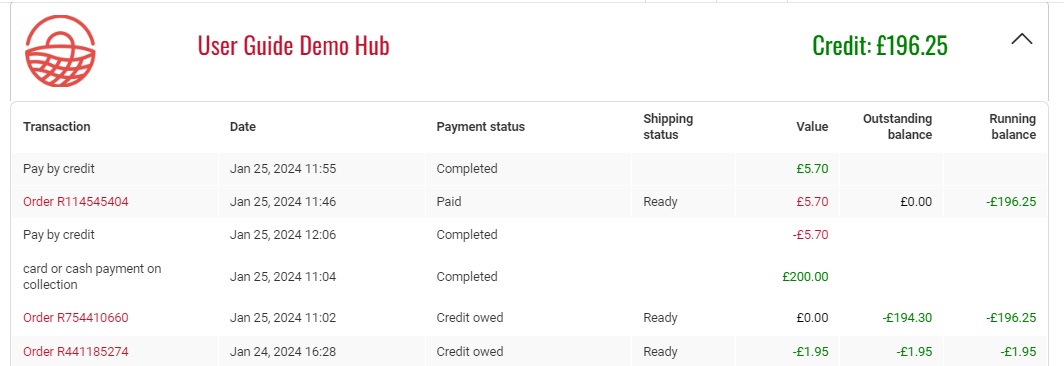
And, finally, when the customer logs into their account the running balance and credit amount will be accurate.